


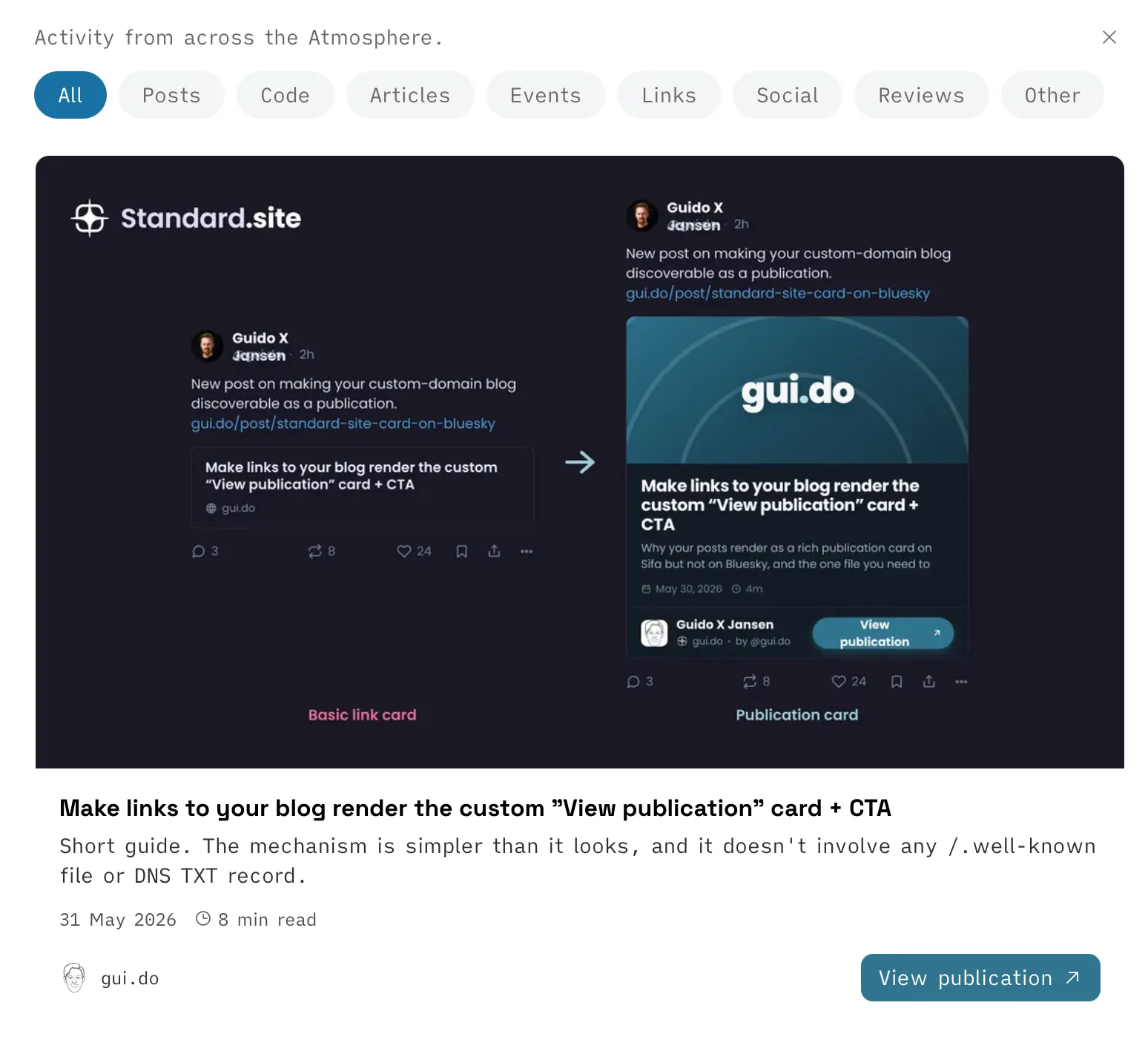
You may have recently started seeing really nice article URL preview cards on Bluesky with their logo, your own accent color and a neat CTA button to View or Subscribe. If you want that too for your articles on your own domain: this guide is for you!
Bluesky v1.122 now renders Standard.site publications as rich link cards: title, reading time, author, site name, theme colours, and an action button. The card title links to the exact post you shared. The action button (Subscribe / View publication) goes to the publication’s home, not that specific post. In the same week, WordPress shipped its ATmosphere 1.0.0 plugin, so a chunk of the open web can now publish as Standard.site too.
One thing about the card before you set this up: it has two separate tap targets. The title, image and body go to the post you shared. The filled “Subscribe” / “View publication” button goes to the publication’s home instead. That’s intended, but it caught me out (the button is the loudest thing on the card, yet it doesn’t open the article), so I wrote it up as a UX issue on social-app.
Let’s get you set up!
What you need
A site.standard.publication record on your AT Protocol PDS, whose url field matches the URL of your site. That covers the case where someone links your publication’s home URL: Bluesky matches it exactly and renders the publication card from that one record.
For the rich card on an individual post (the one with the title, author and reading time), you also need a site.standard.document record for that post. Bluesky builds the match by joining publication.url with the document’s path and comparing it to the shared link, so without a matching document a post link won’t render the rich card. Bluesky compares publication URLs exactly, it doesn’t treat a post as a subpath of your home page, except on the Leaflet / pckt / Offprint hosts. The card’s reading time is also derived from the document’s stored text, so include the post body in the record if you want it shown.
Either way, Bluesky’s AppView indexes these records from the firehose and matches them to post links by URL. It never loads your website. See the matching logic in packages/bsky/src/util/standard-site.ts.
The good news: every publishing path below (Leaflet, pckt, Offprint, WordPress, Sequoia) creates both records for you. You only have to think about this if you’re rolling your own.
No need to change DNS settings or place any /.well-known/ files.
So how to get your content on standard.site
Three paths:
-
Publish through a Standard.site app. Leaflet, pckt.blog, or Offprint all create and maintain a
site.standard.publicationrecord for you when you set up a publication. The publication’surlwill be on that platform (yourname.leaflet.pub, etc.), so links to that URL get the card. As a bonus, the card’s action button reads “Subscribe on Leaflet” (or pckt / Offprint), because Bluesky’s social-app ships a hardcoded allowlist of those three hosts and shows the branded button when the publication URL matches. -
WordPress with the ATmosphere plugin. Installing it gives your WP site a Standard.site publication record automatically, with
urlset to your blog. The card’s button reads “View publication” with a generic arrow icon (your domain isn’t on the hardcoded allowlist, so no platform branding). Functionally identical otherwise. -
Roll your own. If you have your own AT Protocol account and a static blog, you publish a
site.standard.publicationrecord pointing to your domain, plus asite.standard.documentrecord per post (itspathjoined to the publicationurlis what Bluesky matches against the shared link). Steve Simkins’ Sequoia CLI is the most common tool for this. He also wrote a guide on indexing Standard.site records that doubles as a primer on the data model. The card again reads “View publication.”
In all three cases, the card appears in Bluesky once the AppView has indexed the record from the firehose, usually within seconds.
If you don’t have Standard.site set up on your site at all yet, start there first: the Standard.site implementations guide walks through the options for getting a publication record in place. Without that record there’s nothing for Bluesky to render, so the rest of this article (making the embed look nice) only matters once you’ve got one. Get it working, then come back here for the polish.
What about DNS TXT and /.well-known/ files?
Some community write-ups suggest one of these is needed for the Bluesky card. They’re not. The confusion doesn’t come out of thin air though, so here’s what each one actually does:
| File / record | What it does |
|---|---|
DNS TXT _atproto.<domain> with did=<your-did> | AT Protocol handle resolution: proves a domain maps to an AT Protocol DID. Used to make a custom domain work as a Bluesky handle. |
/.well-known/atproto-did (plain-text DID) | Same purpose as above: handle resolution. An alternative to the DNS TXT record, useful for hosts where you can’t set TXT records, or for handles too long for DNS. |
/.well-known/site.standard.publication (AT-URI) | Standard.site’s own verification: proves your domain controls the publication record, so a consumer that checks it won’t trust an impersonator. The Standard.site docs call verification a best practice for production records. Bluesky’s card doesn’t check it. |
So all of them have their own jobs, but none of them get the card to render on Bluesky. The AppView doesn’t load your website at all, it only reads from the PDS.
What if your hosting blocks /.well-known/?
A common gotcha: Ghost Pro, some managed WordPress hosts, and certain SaaS site builders block the /.well-known/ path or don’t let you add DNS TXT records. It doesn’t matter for the Bluesky card, so the card will still appear as long as a publication record exists with url matching your site.
What you do lose on these hosts is the ability to use your custom domain as a Bluesky handle, and the ability to participate in Standard.site verification for any consumer that does check the well-known file (e.g. Sequoia, some third-party readers). If those matter to you, move to a host where you control either DNS or /.well-known/. Most static hosts (GitHub Pages, Netlify, Cloudflare Pages, a plain nginx) let you serve files at any path in seconds.
Setting the card’s button colour and icon
The button colour and the avatar shown on the card both come from the publication record itself.
- Colour is the
basicThemeblock (four RGB colours). - Icon is a
blobreference, square image, at least 256×256, max 1MB.
FYI: Bluesky raised its own profile-avatar upload limit to 2MB in v1.121 (April 2026), but the
site.standard.publicationlexicon still caps the publication icon at 1MB, which honestly, should be enough for an icon… The PDS validates against the lexicon, so anything larger gets rejected at record write.
If you publish through Leaflet, pckt, or Offprint, the platform sets both for you (usually matching your publication’s overall theme). For roll-your-own setups, you have to add them yourself.
Here’s how:
Colours: edit the record on pdsls.dev
pdsls.dev is a web UI for browsing and editing AT Protocol records. Log in with your handle + an app password (Bluesky, then Settings, then App Passwords), navigate to your site.standard.publication record, and paste this basicTheme block into the existing JSON:
"basicTheme": {
  "$type": "site.standard.theme.basic",
  "accent":           {"$type": "site.standard.theme.color#rgb", "r": 49,  "g": 116, "b": 143},
  "accentForeground": {"$type": "site.standard.theme.color#rgb", "r": 255, "g": 255, "b": 255},
  "background":       {"$type": "site.standard.theme.color#rgb", "r": 255, "g": 255, "b": 255},
  "foreground":       {"$type": "site.standard.theme.color#rgb", "r": 0,   "g": 0,   "b": 0}
}| Field | Used for |
|---|---|
accent | Button background |
accentForeground | Button text |
background | (Not used by Bluesky’s renderer at the moment) |
foreground | (Same) |
Replace the RGB values with your brand colours. Only accent and accentForeground actually affect what Bluesky shows you right now (the card body stays in Bluesky’s own theme). The renderer also handles hover (5% darker) and disabled states (5% lighter) automatically from accent, so you don’t need to specify those.
One catch: Bluesky only applies your custom pair if accent and accentForeground have a contrast ratio of at least 4.5:1. If they don’t, it silently ignores them and falls back to its default button styling. So a nice-looking but low-contrast combination just won’t show up, with no error to tell you why.
FYI: all four colours are required by the lexicon, so you can’t drop
backgroundandforegroundeven though Bluesky’s current card doesn’t use them. The PDS will reject the record without them. Other Standard.site renderers (Leaflet, pckt, Offprint) use the full set for the publication page, and Bluesky may extend the card to use them later.
Save the record. Within seconds the AppView indexes the new version and your next link on Bluesky shows the coloured button.
Icon: reuse a blob you already have, or upload a new one
In AT Protocol, blobs are content-addressed by hash and reusable across records on the same PDS. If you’ve already uploaded an image to Bluesky as your profile avatar, banner, or a post image, you can paste that exact blob object into the publication record’s icon field. No upload step needed.
Easiest path: reuse your Bluesky avatar. Fetch your profile record:
curl -s "https://bsky.social/xrpc/com.atproto.repo.getRecord?repo=<your-handle>&collection=app.bsky.actor.profile&rkey=self" | jq .value.avatarThat returns something like:
{
  "$type": "blob",
  "ref": {
    "$link": "bafkreih7flx4skmjivhxle5eqod6jo44k4ux4ewvkbjq6ycha4iwb27j7y"
  },
  "size": 466276,
  "mimeType": "image/jpeg"
}
Copy that whole object, head back to pdsls.dev, open your site.standard.publication record, and paste it in as the icon field. Save. Done.
(Same trick works for your banner, or any image you’ve posted on Bluesky. Whatever blob is already on your PDS is fair game.)
If you want a different image that isn’t already on your PDS, you have to upload it, since pdsls.dev intentionally doesn’t expose blob upload. Two options:
The goat CLI handles upload + record update with goat blob upload <file> followed by goat record update --rkey <your-publication-rkey>. Cleanest if you already use goat for other things.
Or save this as set-icon.sh:
#!/usr/bin/env bash
set -euo pipefail

HANDLE="your.handle"
IMAGE="${1:?usage: ./set-icon.sh path/to/image.png}"
RKEY="<your-publication-rkey>"
COLLECTION="site.standard.publication"
PDS="https://bsky.social"   # or your own PDS endpoint

read -srp "App password: " APP_PW; echo
MIME=$(file -b --mime-type "$IMAGE")
SIZE=$(stat -c%s "$IMAGE" 2>/dev/null || stat -f%z "$IMAGE")

SESSION=$(curl -sS -X POST "$PDS/xrpc/com.atproto.server.createSession" \
  -H "Content-Type: application/json" \
  -d "{\"identifier\":\"$HANDLE\",\"password\":\"$APP_PW\"}")
JWT=$(echo "$SESSION" | jq -r .accessJwt)
DID=$(echo "$SESSION" | jq -r .did)

BLOB=$(curl -sS -X POST "$PDS/xrpc/com.atproto.repo.uploadBlob" \
  -H "Authorization: Bearer $JWT" -H "Content-Type: $MIME" \
  --data-binary "@$IMAGE" | jq -c .blob)

CURRENT=$(curl -sS "$PDS/xrpc/com.atproto.repo.getRecord?repo=$DID&collection=$COLLECTION&rkey=$RKEY" | jq .value)
NEW=$(echo "$CURRENT" | jq --argjson blob "$BLOB" '. + {icon: $blob}')

curl -sS -X POST "$PDS/xrpc/com.atproto.repo.putRecord" \
  -H "Authorization: Bearer $JWT" -H "Content-Type: application/json" \
  -d "$(jq -n --arg repo "$DID" --arg coll "$COLLECTION" --arg rkey "$RKEY" --argjson record "$NEW" \
        '{repo:$repo,collection:$coll,rkey:$rkey,record:$record}')" | jq .
Edit HANDLE, RKEY, and PDS at the top, then run:
chmod +x set-icon.sh
./set-icon.sh ~/path/to/your-avatar.png
The script logs into your PDS, uploads the image, fetches your current publication record, adds the icon blob ref, and writes the record back. Same propagation as the colour change: within seconds the card on Bluesky shows your avatar instead of a fallback letter.
Where to find your rkey
In pdsls.dev, your publication record’s URL ends in something like .../site.standard.publication/3mgfeypogdk2r. The string after the last / is the rkey. You can also list your records via the PDS API:
curl -s "https://bsky.social/xrpc/com.atproto.repo.listRecords?repo=<your-handle>&collection=site.standard.publication" | jq .Running more than one publication on one domain
One publication record per site is the common case, but you can run several on the same domain: a main blog at the root, plus a separate publication for a series or section at its own path. Jason Lengstorf set this up for CodeTV, where the main blog and the Web Dev Challenge series are two distinct publications on one site, and wrote up exactly how: Multiple Standard Site publications on one website.
The short version:
- Each publication is its own
site.standard.publicationrecord, with its ownurlpointing at the relevant path, e.g.https://codetv.dev/series/web-dev-challenge. - Each post is a
site.standard.documentrecord that attaches to a publication through itssitefield (the publication’s AT-URI) and apathrelative to that publication, e.g."path": "/s3/e4-rebuild-your-website-again". - If you also want Standard.site verification (the optional well-known file from earlier, not needed for the Bluesky card), make
/.well-known/site.standard.publicationa directory instead of a single file and nest each publication’s path under it:/.well-known/site.standard.publication/series/web-dev-challenge, with that file holding the publication’s AT-URI.
Two things Jason flagged from doing it for real: you can’t set a per-post author on a document, so the publication itself shows up as the author, and he created the records by hand with Taproot rather than automating it. You can check any of this with the Standard Site validator.
Verifying it works
Post a link to your publication URL on Bluesky and watch the embed render. If the card doesn’t appear:
- Confirm a
site.standard.publicationrecord actually exists on your account’s PDS. You can browse your records with pdsls.dev. - Confirm its
urlfield exactly matches the URL you’re linking to. The AppView canonicalises (lowercase host, strip trailing slash, drop query/fragment) but otherwise needs a match. On the Leaflet/pckt/Offprint hosts (and their subdomains) a post link can extend the record URL with extra path segments and still match. Everywhere else the publication URL must match exactly, which is why individual posts need their own document record. - Give the firehose a minute to propagate.
That’s the entire mechanism. The well-known files have their own value, but they’re not on the critical path for the Bluesky card. The publication record is.
One record, many different apps
Your site.standard.publication record lives on your PDS as a plain AT Protocol record, and Bluesky is just one of the apps reading it. Any app that indexes the firehose can pick up the same record and show your publication however it likes, without you signing up for anything.
Sifa ID does exactly that:
It reads the same Standard.site records straight from the network and shows your publication in a completely different app. Same data, different readers, each taking the parts it cares about. Set the record once and you’re done: that’s the point of publishing to an open protocol instead of one platform’s API. Interoperability FTW!
Hannah Shelley wrote up putting her Neocities blog on atproto, a nice real-world walkthrough of the roll-your-own path on a fully static host.